
How to print your own Amazon Transparency labels
Click a Sample Transparency Layout to Instantly Use it
These samples are based on Amazon’s suggested layouts.
Use these as-is, or as the starting point for your own special labels. You can easily change the size, text, barcodes, graphics, color, pretty much anything.
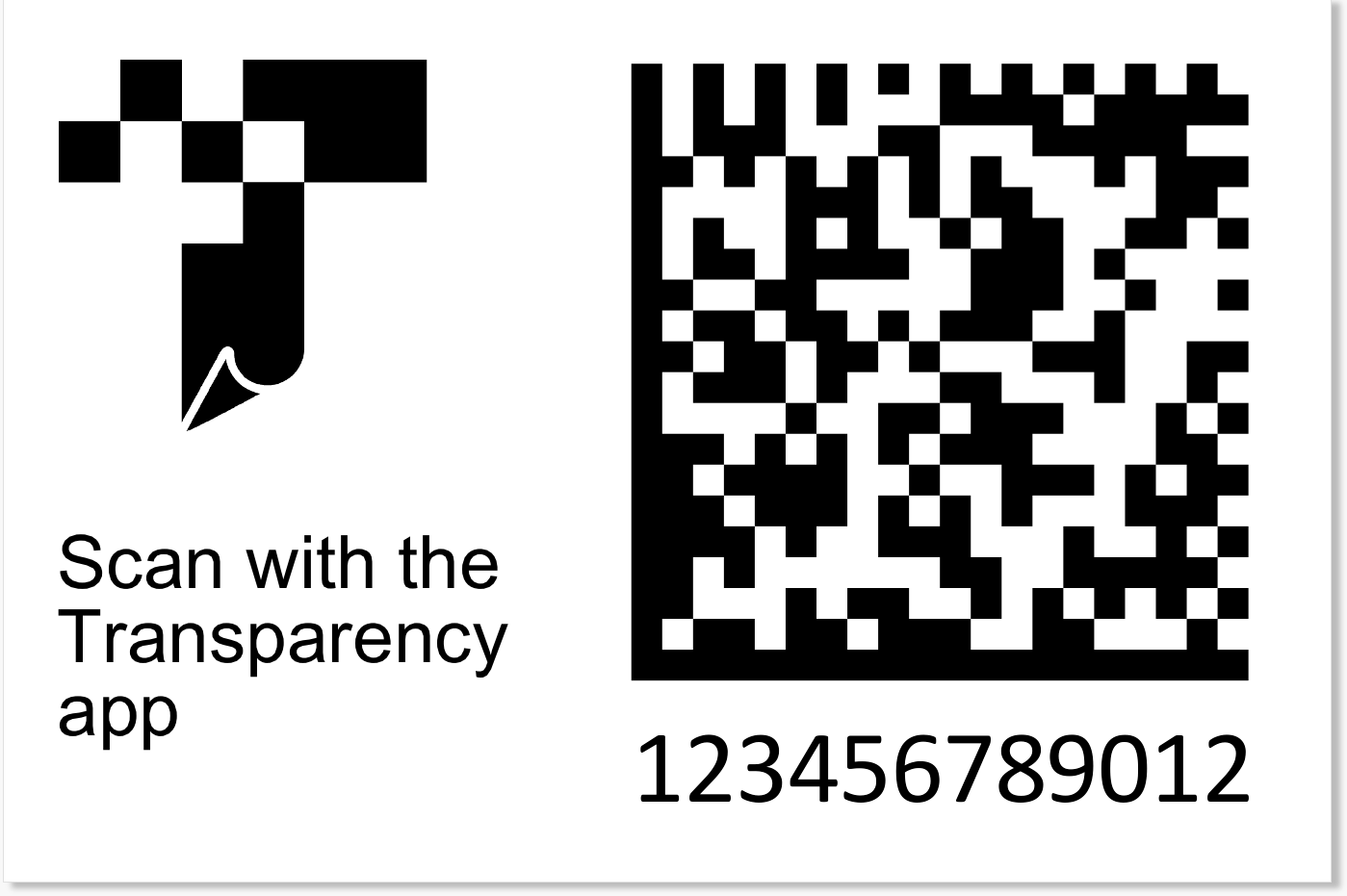
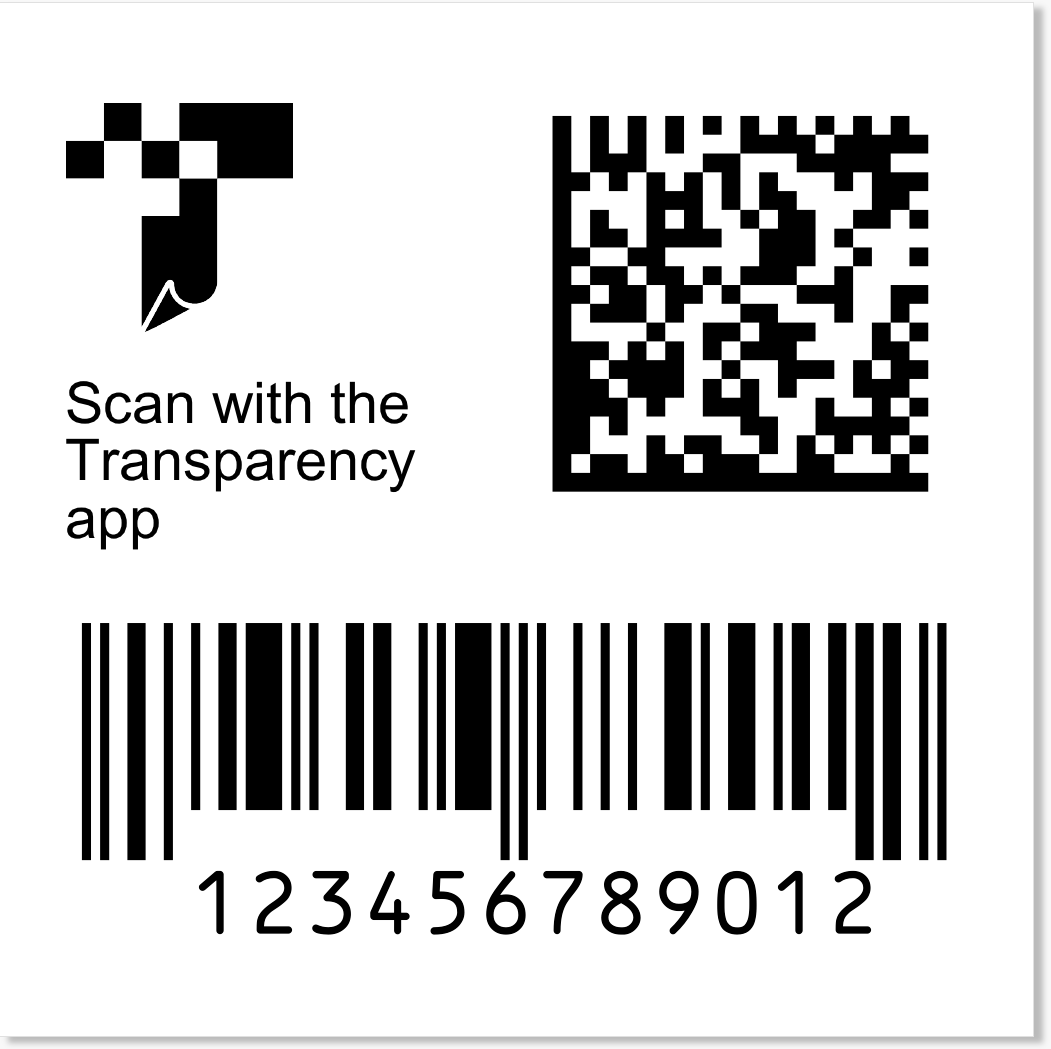
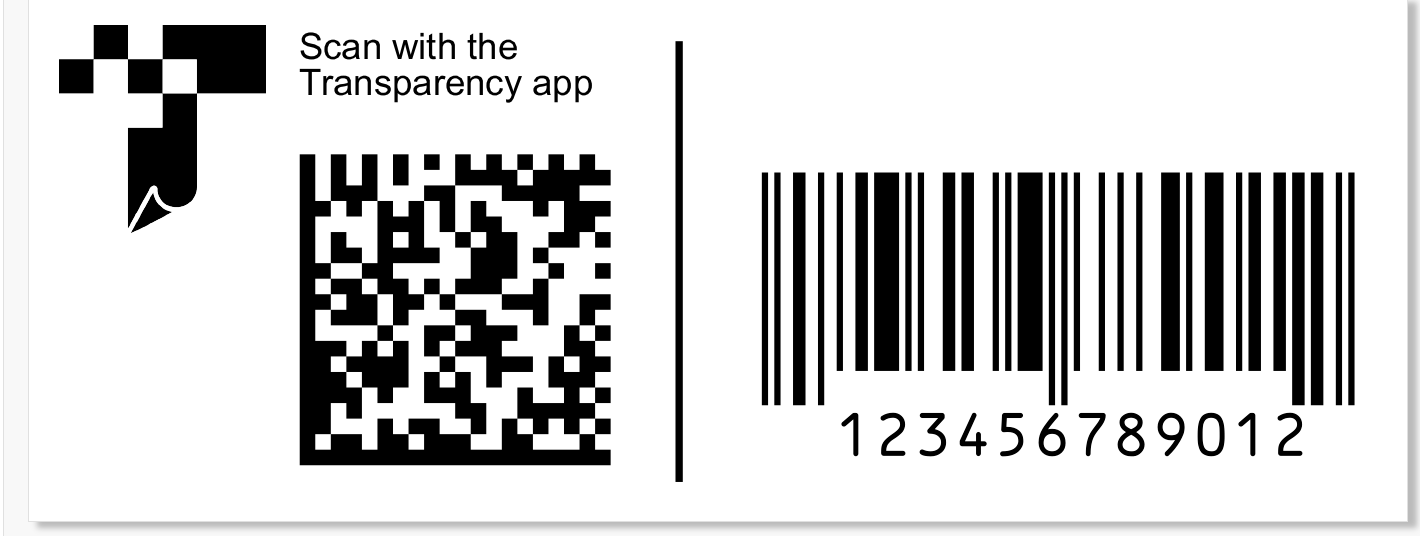
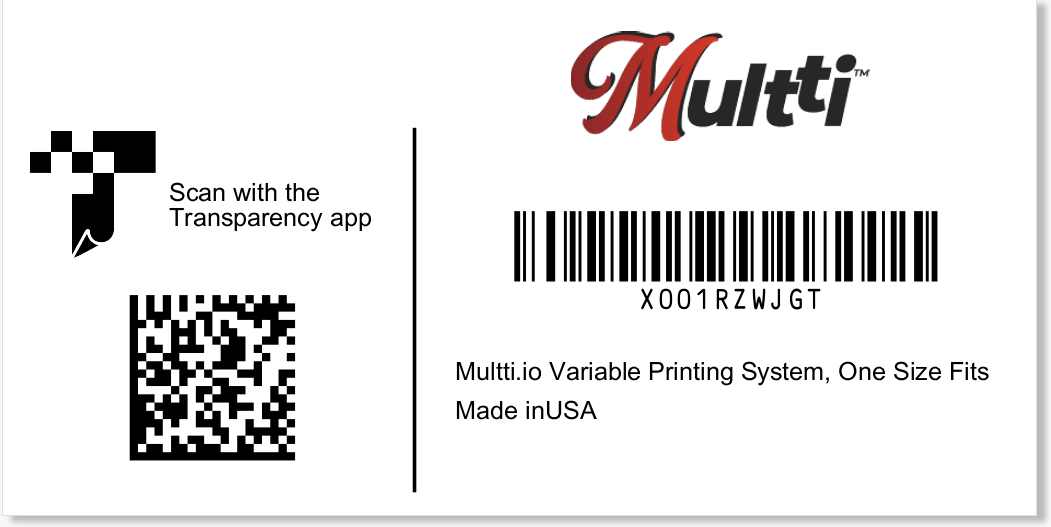
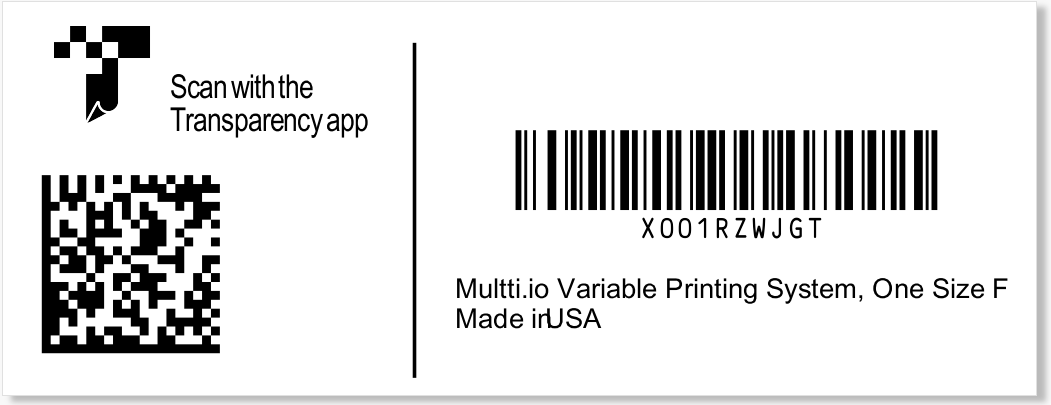
Sample templates are for education only. No warranty express or implied.
How to print your own Amazon Transparency labels
Setup checklist for DIY Transparency labels using the Multti app
- Click on one of Amazon’s basic label designs above, whichever one is closest to what you want. You can change it later.
- That’ll take you into Multti with the selected label as a template, and some sample fake data to test with. This is a template for a single label; setting up multiple labels per page (optional) will be shown in a step below.
- Before modifying the sample layout, remember that Amazon allow some flexibility about labels’ contents and layout, but requires the following to be prominent:
- The Transparency logo near the top. The samples all have a custom black-only version of Amazon’s color artwork to avoid the cost of color printing, but you can replace it with color artwork from Amazon as needed.
- The specific words “Scan with the Transparency app” in one or more languages. Alternate language text are available in Amazon’s Transparency Onboarding document.
- A Data Matrix barcode containing the long Transparency code, unique for each label. For production you’ll need to purchase CSV files of actual Transparency codes from Amazon to use instead of the built-in fake sample code data.
- Not required but strongly recommended: the identifier (usually ASIN or UPC/GTIN) of the product that a batch of labels is for. Some users also place tiny identifying text in the margin at the edge to help make sure the right label is on the right product.
- Minimum 1×1″ label size.
- Select Multti’s Template tab. If necessary, edit the label’s size using the Size button near the top row. This may require you to stretch or shrink the template’s Overlay boxes to fit better.
- Add or remove optional Overlay elements, most frequently:
- Your logo or product logo. Click on +Overlay and select Image. Drag out a box and select the image.
- A barcode with UPC/EAN or ASIN codes for the product. Click on +Overlay and select Barcode. Drag out a box and select the the appropriate Barcode Type. Popular choices are Amazon FNSKU, EAN13 and UPCA.
- Remember that each spreadsheet of Transparency codes from Amazon is for one specific product only! That product identifier is almost always what your secondary barcode is for.
- You can set Content Source (the data to barcode) to Fixed Text, then enter the product’s code to the right.
- Even better, set Content Source to Job Tag, then click + to set up a new Job Tag for that information with a suitable name like ASIN, UPC, or other. That way you can later reuse your label’s setup for other products just by changing the Job Tag’s value on the Job tab without messing around with (and possibly messing up!) the Template.
- Optionally a barcode with the serial number per Amazon’s requirements. Can be Code128, Data Matrix, QR; begins with the prefix SN.
- Draw lines and rectangles using +Overlay, select Line or Rectangle.
- Test your template by clicking the < and > buttons near the top, right.
- Switch over to the Layout tab. Select the type of labels you’ll be printing on. Multti will automatically lay out multiple (N-up) labels on one sheet if necessary.
Production
- Safety and accuracy: it’s crucial to print the right label for each product. Just as importantly, ensure that individual labels are unique — you must never reuse Amazon’s codes or they will reject the incoming merchandise.
Multti has 3 unique feature to help with that:- Avoid reusing codes. Let’s say you purchased 1000 codes but only need 50 labels that day: on the Job tab select Print Setup. Under ‘Limit merge to specific rows’ turn on ‘Update first row after print.’ That will cause the ‘First data row’ to increase by the number of labels you print that run. The new First data row will be remembered later.
- Make the correct product’s label when you have multiple Transparency products: on the Job tab select Job Tags. Create a job new tag with the product’s name, whether of not you print it on the label. Job Tags and their values show up on the Print tab before you create the labels as a double-check for the operator, e.g. “Black Parka with Hoodie.” For extra safety, turn on the ‘Prompt before print’ option to force the operator to click next to the name to confirm the value.
- Batch header sheets or labels: on the Template sheet, select the Cover sub-tab. Add Overlays for whatever info will help the production process, e.g. product info, date, etc. Printing white text on black boxes is often helpful.
- Setup for multiple products: once you have your first Job set up perfectly, you can save copies (File, Copy this job) under new names such as each product’s ASIN or UPC. For each copied job:
- Data tab: purchase new Amazon codes for that product and replace the Primary sample data with Amazon’s data.
- Job tab:
- Print Setup: reset to 1 the First record to print
- Job Tags: update the tags for UPC/EAN/ASIN and product description (assuming you have them)
- Merge and print:
- Select the right job for a product using the drop-down at the top.
- On the Print tab set ‘Number of rows to merge’ to the number of labels you need. Make sure you have sufficient remaining Amazon codes.
- Confirm that Job Ticket Tags show the right product’s info.
- Click Start:
- The Test PDF button makes a watermarked test PDF. There is no charge for these, and the ‘First data row’ is not updated.
- The Final PDF button produces final labels. Your account is charged for the labels and ‘First data row’ is updated.
- Running out of labels: if you have alternate ones you’d like to use temporarily, go to the Layout tab and pick the alternate, then enable ‘Auto-fit to cell’. Multti will also automatically change any N-up setup to match the new labels.